- Click the [fa i=”globe-americas”] in the top right corner of the map to open the map source menu.
- Click on a menu item to select it. In this example, Sentinel 2 has been selected.
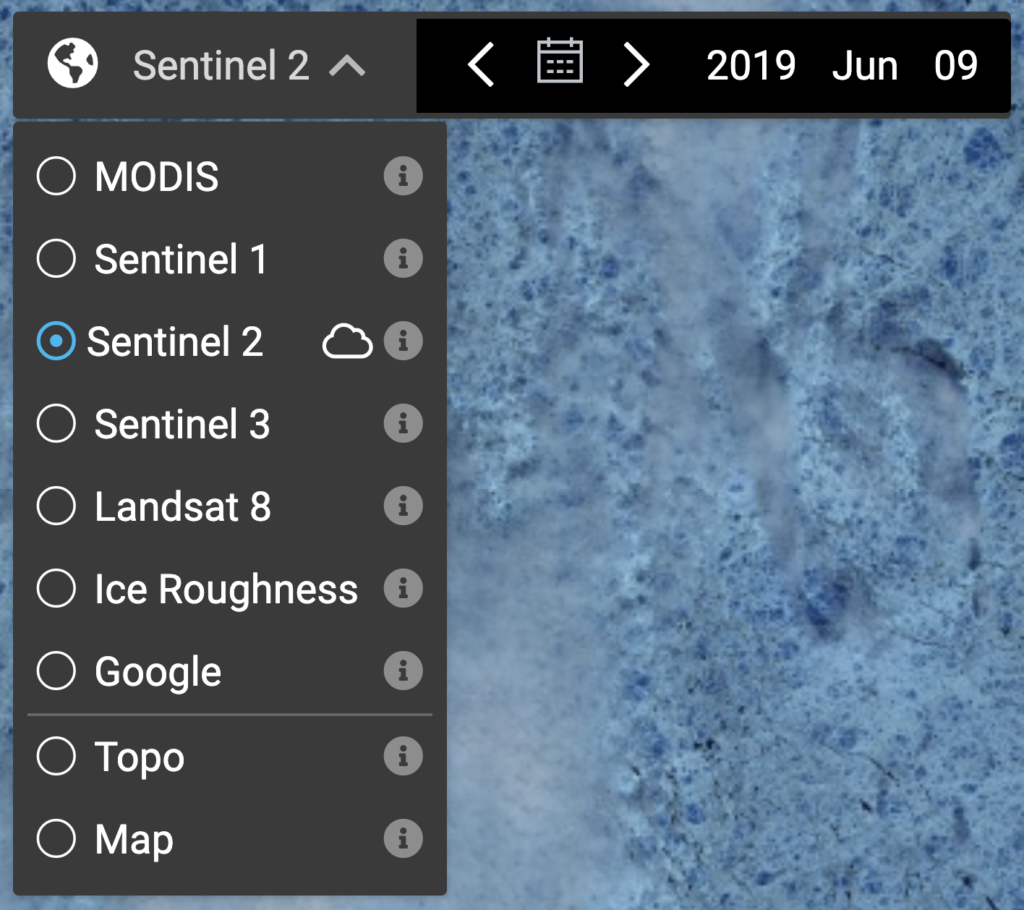
Click the [fa i=”info-circle”] button to learn about each source. - Choose the date to display from the date picker [fa i=”calendar-alt” w=”r”] or use the forward [fa i=”chevron-right” w=”r”] and back [fa i=”chevron-left” w=”r”] arrows.
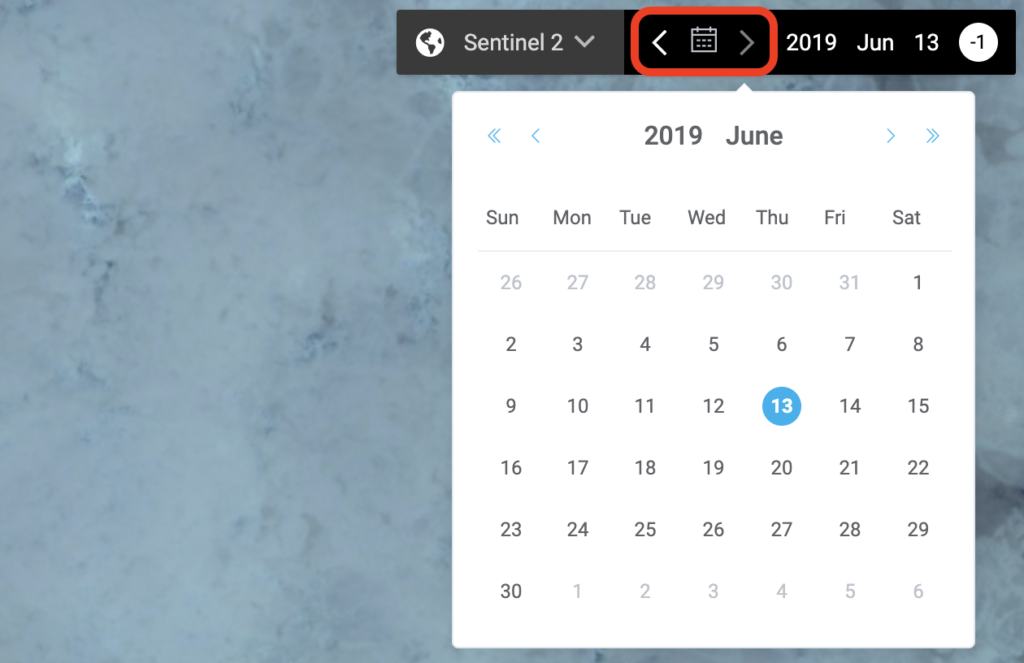
SIKU will automatically find the closest imagery to the date you select.

Basemaps & Satellite Imagery Basics
Contents
Updated on August 4, 2020